USB-C Hub vs. Docking Station: What’s the Difference?
A thin laptop can be wonderfully convenient until you need to connect a monitor, keyboard, flash drive, and charger at the same time. Suddenly, two USB-C ports don’t feel like enough.
A USB-C hub and a docking station can both solve that problem. They add connections through a single cable, but they’re usually built for different routines. One is often a small travel companion; the other can become the center of a permanent desk setup. The confusing part is that product names aren’t standardized. A premium hub can overlap with an entry-level dock, so the label on the box isn’t the deciding factor.
The short answer
Choose a USB-C hub if you need a few additional ports, value portability, and occasionally connect a display or external drive. Consider a docking station if you connect multiple accessories every day and want a more permanent one-cable workspace.
The most important questions are whether your laptop supports the connections you want, how much power it needs, and what monitor configuration you’re planning.
What is a USB-C hub?
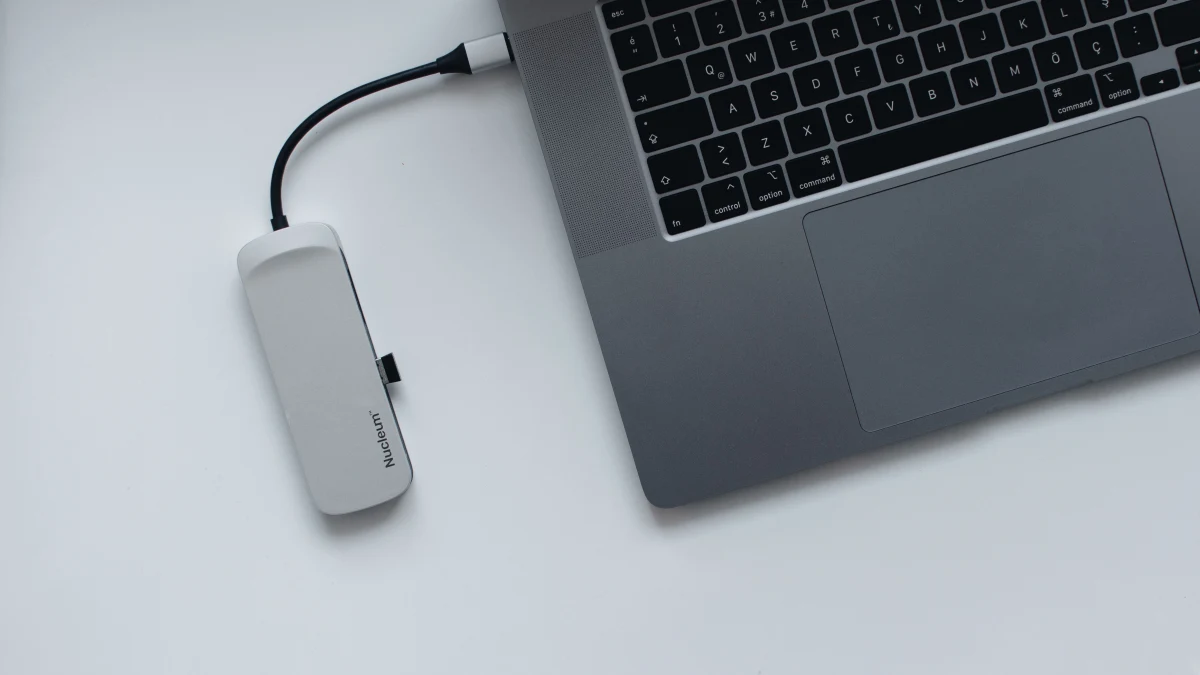
A hub expands one USB-C connection into several useful ports. A common combination includes USB-A, HDMI, a card reader, and a USB-C port for charging pass-through. Some also include Ethernet. Many are light enough to live in a laptop sleeve.
Picture a student who uses a laptop in class but occasionally needs HDMI for a presentation and USB-A for a flash drive. A small hub can handle those tasks without adding much bulk. A photographer transferring images from an SD card might benefit from the same accessory.
Hubs aren’t all equal. A USB-C port on a hub might carry data, charging input, or both; it might not support video. Read the specification for each individual port rather than assuming every USB-C opening has the same capabilities.
What does charging pass-through mean?
Some hubs let you plug your existing USB-C charger into the hub while the hub connects to the laptop. That is convenient, but it isn’t equivalent to a hub supplying its own power. The hub may reserve some of the incoming power for itself, leaving less for the laptop. If your laptop normally uses a 65W adapter, check how much of that power actually reaches the computer.
What is a docking station?
A docking station is designed to keep a collection of desk accessories connected. You might leave your monitor, Ethernet cable, keyboard, mouse, webcam, and external storage plugged into the dock. When you sit down to work, you connect the laptop to the dock instead of reconnecting each accessory.
Many desktop docks use an external power adapter and can charge a compatible laptop. They may offer more USB connections and display outputs than a compact hub. That doesn’t mean every dock can drive two or three external monitors, though. Display support depends on the dock’s technology and the laptop’s own limitations.
USB-C hub vs. docking station: key differences
| Question | USB-C hub | Docking station |
|---|---|---|
| Main job | Add a handful of ports | Support a desk-based workstation |
| Typical size | Compact and portable | Often larger, though travel docks exist |
| Power | Bus-powered or charging pass-through | Frequently includes a power adapter |
| Displays | Often one, sometimes more | Often more options; compatibility still varies |
| Best fit | Travel, school, occasional accessories | Daily desk use, multiple peripherals |
| Cost | Usually lower | Usually higher |
These are tendencies, not strict rules. Compare the actual ports and supported features before deciding.
Monitor support is the biggest compatibility trap
Two HDMI sockets don’t automatically mean two independent extended displays. Native video uses the laptop’s graphics hardware through a supported connection, such as DisplayPort Alt Mode over USB-C. A DisplayLink dock sends display data over USB and requires compatible software. Before buying, check the laptop’s port capabilities, the dock’s video technology, and any software restrictions on your operating system.
Mac owners should be especially careful about native external-display limits, which vary by model. Windows laptops also differ in the number and resolution of displays they can support. Check the laptop model, operating system, dock documentation, and the exact resolution and refresh rate of your monitors. A claim such as “dual 4K” is incomplete without those details.
If you’re only using one ordinary external monitor, a compatible hub may be plenty. If you need two monitors at a particular refresh rate, research the complete combination before buying anything.
How much charging power do you need?
A docking station that says “180W power adapter” doesn’t necessarily send 180W to the laptop. Some of that capacity powers the dock and connected accessories. Look for the separate host charging specification.
The same principle applies to hubs advertising “100W pass-through.” The number may describe charger input, not laptop output. Compare the power delivered to the laptop with the original adapter’s rating. A lower-power connection might charge slowly or fail to keep up while the computer is busy.
For a deeper explanation, see our guide to USB-C charger wattage.
Which one fits your routine?
If you work in different places
A hub makes sense when you carry your laptop between home, school, offices, or cafés. You can pack a compact adapter and connect only what you need. Prioritize the ports you actually use instead of paying for an elaborate array of connections.
If you work at the same desk most days
A dock can make daily setup simpler. Leave your accessories connected, plug in the laptop, and start working. The convenience is especially noticeable if you frequently move your laptop away from your desk.
If you use a laptop and portable monitor
Either can work, but check how the portable monitor receives video and power. Some rely on a single USB-C connection with DisplayPort Alternate Mode; others accept HDMI plus separate USB power. A hub with HDMI is not automatically a one-cable solution for every portable monitor. See our guide to portable monitor compatibility for the cable and power checks.
Five checks before you buy
- Laptop capabilities: Does your USB-C port support video output, USB4, or Thunderbolt?
- Port types: Do you need USB-A, SD cards, Ethernet, HDMI, DisplayPort, or high-speed USB-C data?
- Charging: How many watts reach the laptop while everything is connected?
- Monitors: Does the exact laptop-and-dock combination support your number of displays, resolution, and refresh rate?
- Software and cables: Does the accessory require drivers, a special host cable, or a separate power adapter?
Common questions
Can a hub replace a dock?
Yes. If it supports every connection you use, there’s no need to buy a larger accessory simply because it’s called a dock.
Is Thunderbolt necessary?
Not for most basic keyboard, mouse, and single-monitor setups. It can be useful for higher-bandwidth peripherals and certain display configurations, but only if the computer and accessories support it.
Can I use a dock with a Mac and a Windows laptop?
Sometimes. Check the dock’s published compatibility list and the monitor limitations of each computer. Identical connectors don’t guarantee identical behavior.
The bottom line
A USB-C hub is a practical way to add connections without carrying extra bulk. A docking station is a practical way to keep a desk ready for work. Don’t choose by port count alone: check laptop compatibility, display support, and actual charging output. Those details matter far more than whether the packaging says hub or dock.