How to Choose a Portable Monitor for Your Laptop
A second screen can make a laptop feel much less cramped. You can keep a video call open on one display while taking notes on the other, or place reference material beside the document you’re editing. A portable monitor promises that extra workspace without a permanent desk setup.
But the shopping pages are full of similar-looking thin displays. A 15.6-inch model with USB-C may seem like an obvious choice until you discover that your laptop’s USB-C port doesn’t carry video, or that the screen needs more power than your laptop can comfortably provide.
Here’s what to check before buying.
The short answer
For many people who want a travel-friendly second screen, a 14- to 16-inch portable monitor with a readable resolution, a stable stand, and compatible USB-C video input is a sensible starting point. A larger or higher-resolution model can be useful for detailed work, but it may require more power, weigh more, and cost more.
Don’t choose by screen size alone. Connectivity, brightness, and stand design often make a bigger difference in everyday use.
Start with where you’ll use it
A portable monitor for a home desk doesn’t need to be quite as light as one you carry through airports every week. If you’re mostly working from a café table, the footprint and stand stability matter. If you travel by car and set up in hotels, a slightly larger display might be worth the extra weight.
Think about the actual space available next to your laptop. A portable monitor that looks compact in a product photo can feel awkward on a small table, particularly if the stand needs extra depth behind it.
Screen size: 14, 15.6, or 17 inches?
A 14-inch screen is easier to pack and may pair well with a compact laptop. Around 15.6 inches is a common middle ground for extra workspace. A 17-inch model offers more physical screen area but is less comfortable to carry and may be harder to position on a small desk.
Bigger isn’t automatically better. A larger screen with the same resolution has lower pixel density, so text may appear less sharp at close viewing distances. The right size depends on your eyesight, viewing distance, and how much you value portability.
Resolution: is 1080p enough?
A 1920 × 1080 portable monitor can be adequate for documents, browser windows, and video calls, especially around 14–15.6 inches. Higher resolutions may make text and fine details look sharper, but can increase price and power requirements.
For detailed design or photo work, consider pixel density, color accuracy, and the ability to calibrate the display—not just resolution. A seller’s “4K” badge doesn’t tell you how accurate the screen is.
Also check the aspect ratio. A 16:10 display offers a little more vertical workspace than a similarly sized 16:9 model, which can be useful for reading and editing documents.
USB-C video support: the most important check
A portable monitor may advertise “one-cable USB-C,” meaning it can receive video and power through one connection. But your laptop must support the required video mode, commonly DisplayPort Alternate Mode over USB-C or a compatible USB4/Thunderbolt connection.
Not every USB-C port supports video. A laptop port used only for charging and data may not drive the display, even though the cable fits perfectly.
Check the laptop’s video output, the monitor’s input, and whether your USB-C cable supports the required video mode. HDMI or mini HDMI can carry the picture on compatible models, but an HDMI connection does not power the screen. Plan for separate power unless the monitor has a built-in battery.
Our USB-C hub vs. docking station guide explains why similar-looking ports can behave differently.
How will the monitor get power?
Some portable monitors can draw enough power from a compatible laptop USB-C port. Others need a separate adapter or may work more reliably when external power is connected, particularly at higher brightness.
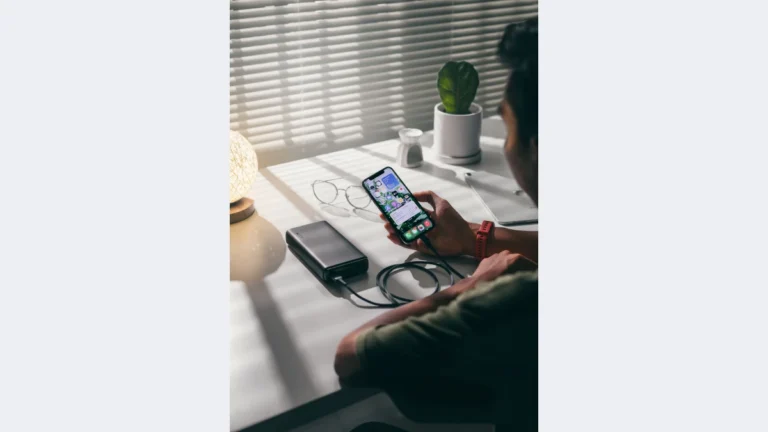
If you plan to work away from outlets, consider the impact on your laptop battery. A bus-powered second screen adds to the laptop’s power consumption. Built-in-battery monitors exist, but add weight and introduce another device to recharge. For a monitor that supports external USB power, our guide to choosing a USB-C power bank explains how to check output and capacity.
Check whether the monitor includes a power adapter and which cables are provided. A surprisingly low price can become less attractive if you need extra accessories to make it work.
Brightness, reflections, and color
Brightness matters if you’ll use the monitor near windows or in brightly lit spaces. Manufacturers commonly report brightness in nits, but advertised values don’t always describe real-world visibility. Glossy surfaces may look vibrant while reflecting more light; matte coatings can reduce reflections but change perceived contrast.
If you edit photos, look for credible color-accuracy measurements and gamut coverage. “100% sRGB” claims can be useful as a starting point but don’t guarantee accurate calibration. For ordinary office work, legible text and comfortable brightness may matter more than wide color gamut.
Don’t overlook the stand
A flimsy kickstand can make a portable monitor frustrating to use. Some models use a folding cover as a stand, while others have a built-in metal kickstand. Consider whether you can adjust the viewing angle, rotate the screen, or position it vertically.
If you use a laptop stand, you may want the portable monitor elevated too. Check whether it supports VESA mounting or a compatible portable stand, and include that in your budget.
Refresh rate and touchscreens
A standard 60Hz panel is usually sufficient for spreadsheets, writing, and general productivity. Higher refresh rates may appeal to gamers or users who prioritize smoother motion, but they’re not essential for a basic second screen.
Touchscreens add another consideration: touch support may depend on operating-system compatibility and an additional USB connection. Don’t assume touch works over every video input or on every laptop.
A practical comparison checklist
| Feature | Why it matters |
|---|---|
| Size and weight | Determines how comfortably you can carry it |
| Resolution and aspect ratio | Affects sharpness and usable workspace |
| USB-C video input | Determines one-cable compatibility |
| HDMI alternative | Offers flexibility with older laptops |
| Power requirements | Affects battery life and cable clutter |
| Brightness and coating | Determines comfort in different lighting |
| Stand and mounting | Affects desk ergonomics |
| Included cables | May add hidden cost |
Common mistakes
The most common mistake is assuming that a USB-C-shaped port guarantees video output. The second is choosing a monitor based on a glossy product photo while ignoring the stand and power setup. A third is buying an expensive high-resolution screen without considering whether the laptop can drive it comfortably at the intended refresh rate.
If you use a managed work laptop, also check whether external displays are restricted by company policy or hardware configuration.
Frequently asked questions
Can a portable monitor work with one cable?
Yes, if the monitor accepts video and power over USB-C and the laptop supports the necessary video output and power delivery. Verify both sides.
Will a portable monitor drain my laptop battery?
It can increase power use when powered by the laptop. The effect varies with brightness, panel efficiency, and laptop battery capacity.
Is 1080p enough for a 15.6-inch monitor?
For many office tasks, yes. Higher resolution can improve sharpness, especially for small text or detailed work, but it isn’t essential for everyone.
Do I need a docking station?
Not necessarily. A compatible direct USB-C connection may be simplest. A dock becomes useful if you also want to connect several other accessories.
The bottom line
A good portable monitor should make your laptop easier to use, not add a tangle of adapters and cables. Prioritize a size you’ll actually carry, a stand you’ll enjoy using, and confirmed compatibility with your laptop’s video and power capabilities. Those details matter more than choosing the biggest display in your budget.